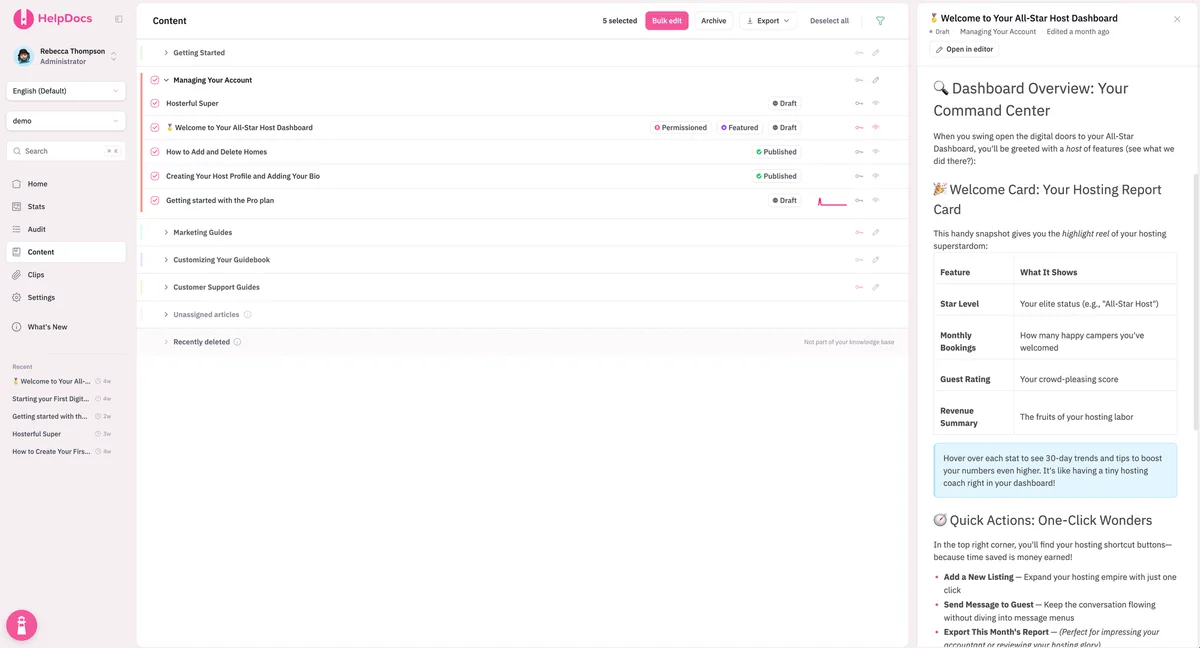
Working copies
Any edits you make to an article that's already published won't go live until you select Publish. Meanwhile, your readers keep seeing the current version.
Version history you can actually read, working copies that stay off the live site until you publish, and a reminder when an article goes stale. Your readers get a fast, searchable help center on your own domain.
No credit card required.
Real teams, real knowledge bases. Click a logo to see theirs.
















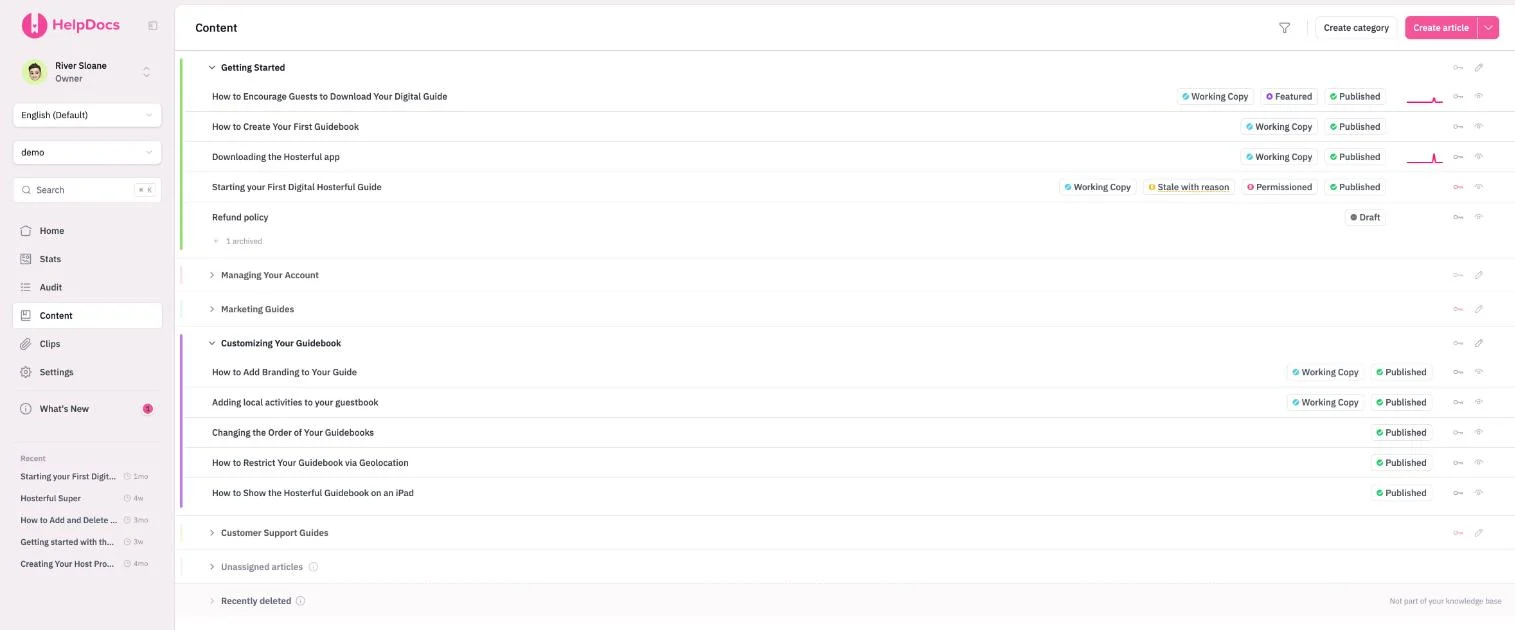
Add a comment to any sentence, @mention a teammate to pull them in, and mark the thread resolved once the fix lands. Markdown you paste shows up formatted right away.
All your working copies, stale articles and drafts show up in one list, and you get a weekly email pointing out anything that's now out of date.
Bring your Markdown in from a GitHub repo, and every article goes back out to AI tools as Markdown, via llms.txt and MCP.
Documentation is our favorite subject, so we write about it a lot: guides to building a knowledge base, notes on writing help content, and research from real help center traffic.
 Guides HelpDocs Learn A free path from knowledge base basics to choosing software, building it and keeping it current.
 Blog Bookmarked Our blog on the art and craft of knowledge bases and customer support, and the people behind them.
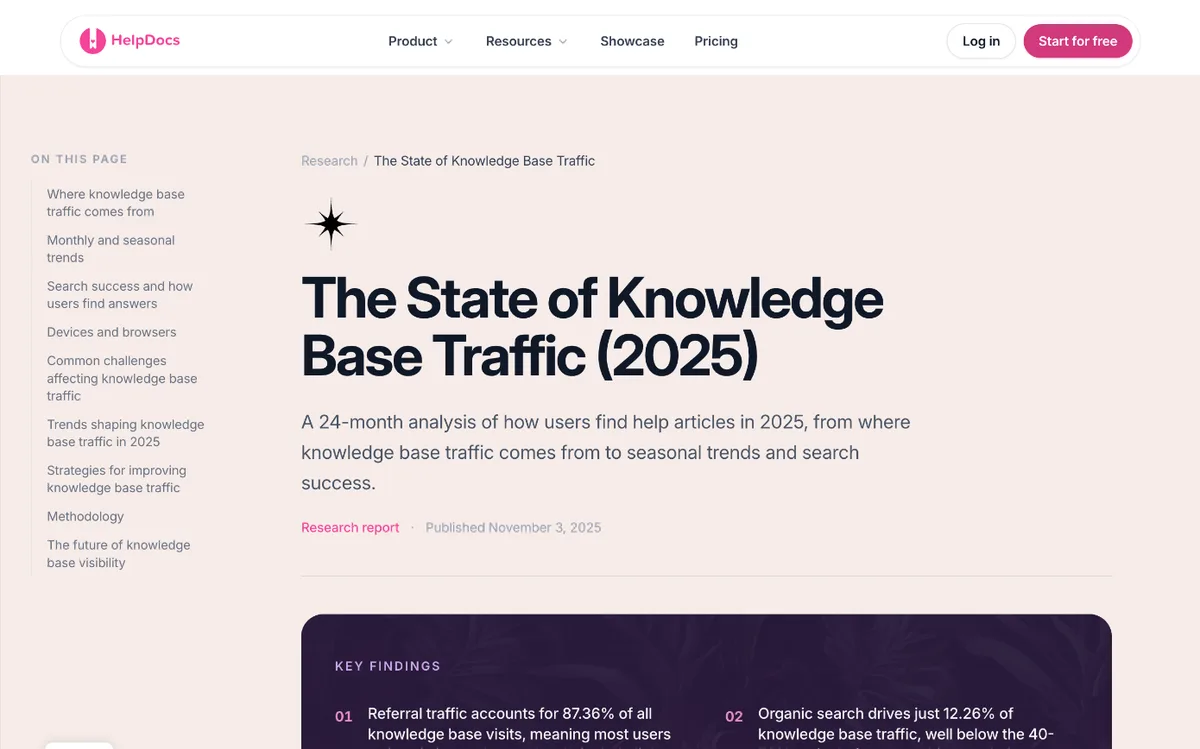 Research The State of Knowledge Base Traffic 2025 A 24-month study of where knowledge base traffic comes from, how it shifts through the year, and how often searches succeed.
Your published article keeps serving readers even while you rework a working copy. When you're ready, compare it to any earlier version and publish the new one. If it turns out wrong, you can always restore the old version.
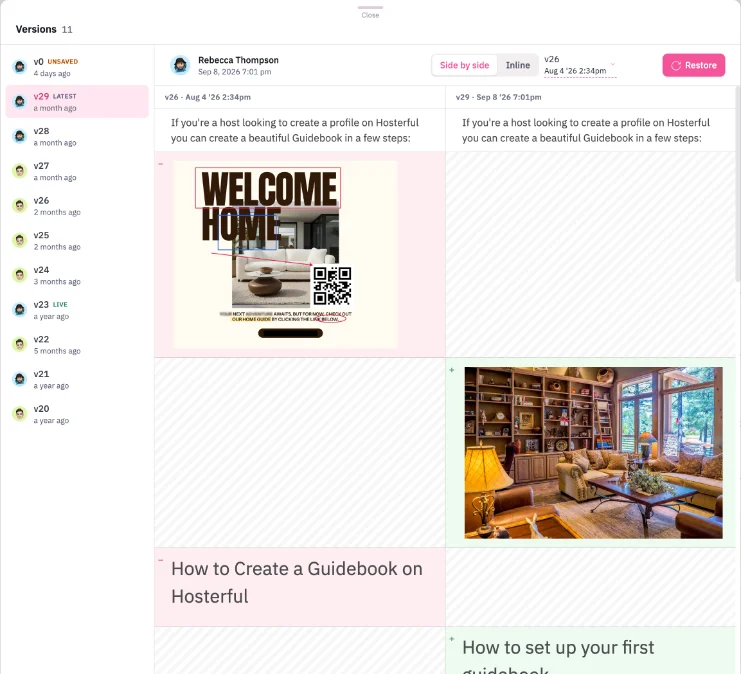
Any edits you make to an article that's already published won't go live until you select Publish. Meanwhile, your readers keep seeing the current version.
Pick any two versions and compare them. Anything deleted shows in red and anything added shows in green, so anyone reviewing can tell precisely what changed.
Every time you save, a new version is kept along with who made the change and when. You can roll back to any one of them whenever you like.
Unsaved work sticks around in your browser and lands in Versions, so closing a tab won't eat your afternoon.
Documentation ages out without anyone noticing. You can mark an article stale and give a reason, or set a schedule so it goes stale in 30 days, 3 months or 6 months. The page stays live while that's pending, and the stale marker appears wherever your team looks.
Whoever takes over can see at a glance what got updated: the screenshots, the feature, or the UI.
If an article follows a release or a policy cycle, you can pick the exact date it goes stale.
Articles that have gone stale find their way to your Home screen, and a weekly email catches them too. Nobody has to hunt around for outdated content.
Check the searches your readers ran that came up empty, and the articles they flagged as unhelpful. That tells you where your next edit belongs.
Select any sentence to comment on it, @mention a teammate, and resolve the thread when it's fixed. Pin a comment as a Guardrail and anyone about to publish reads it first.
Highlight the text and call out what's wrong with it. Your comment holds the quote, and clicking through drops you right back to the sentence.
Bring a teammate into the conversation by @mentioning them, reply in the thread, add a reaction, and mark it resolved when the job's done.
Once you pin a comment as a Guardrail, it hangs at the top of the article. Anyone about to hit publish runs into it first, then makes the call.
Keep repeated content in one place, so you write it once and reuse it anywhere. Markdown works if that's how you think. Translating won't mean copying articles around.
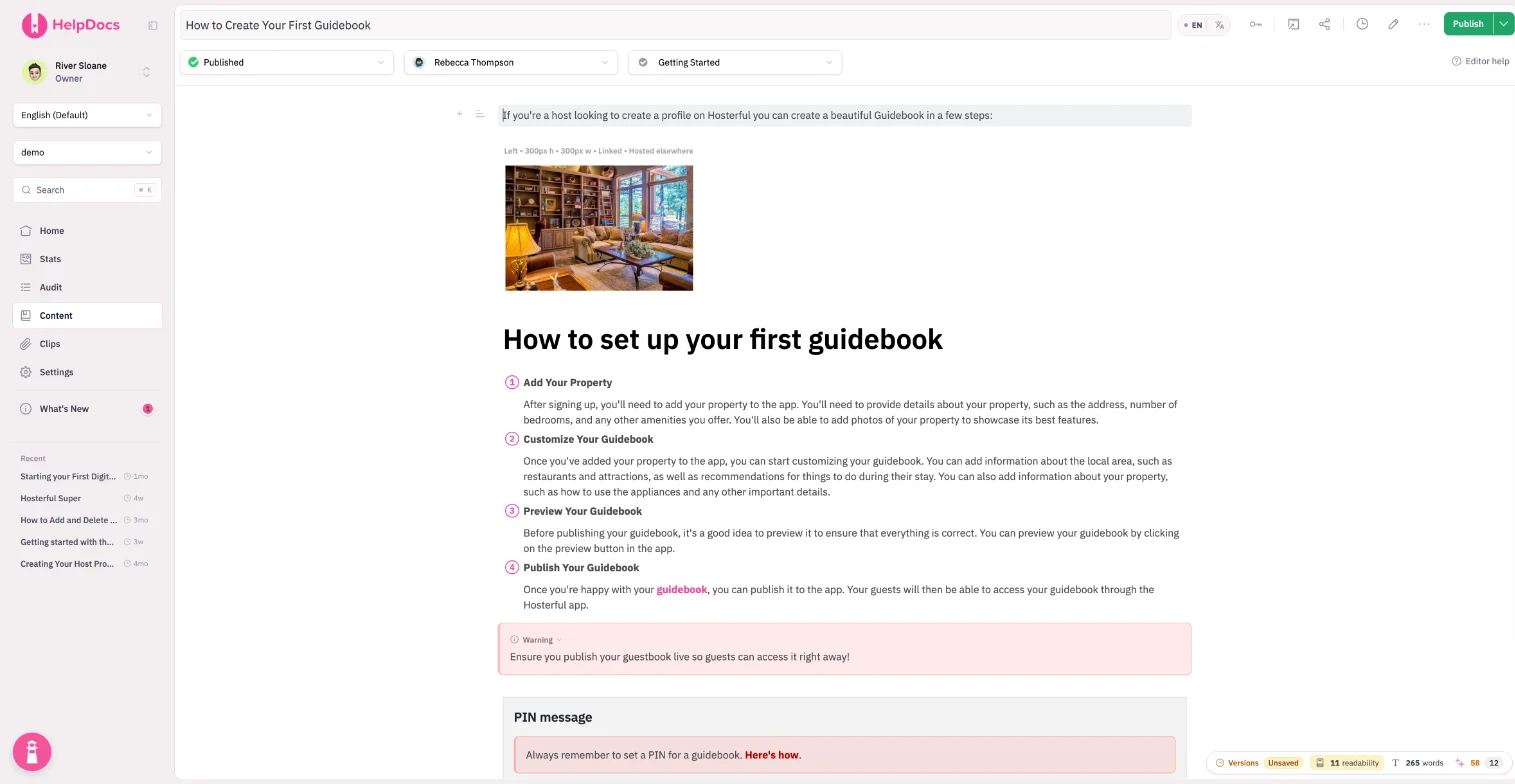
Turn things you repeat, like a warning or a setup step, into a Clip. Update that Clip once and the change shows up in every article that uses it.
Keep a product name or support email in one spot. Drop it into a Clip, then override it on any article where you need something different.
Paste in Markdown and we'll do the converting, or drop in a Markdown block and type raw. Whatever you publish, you'll also get a .md version of every article.
Point it at a repo (Docusaurus, MkDocs or a plain docs folder) and the Markdown files become articles. It's a one-time import, not a sync.
Each language is a version of the same article, with machine translation to start from. 3 languages on Sprout, 20 on Bloom, unlimited on Harvest.
Every article displays a word count and a readability score underneath, so you can catch a draft turning dense before an editor has to point it out.

HelpDocs AI clears the blank page and the busywork, meta descriptions and alt text included, then drops a draft in your lap to shape. You're still the author. Whatever ships is your call.
Drop in a title and your bullets, and you'll get a structured first draft you can rework in your own words. Every plan.
Pick a stretch of text and have it rewritten for you. Improve (Bloom and up) takes the whole article, offers up suggestions, and lets you take only the ones you like.
Set your default style one time, and every AI draft and rewrite follows it (Bloom and up). The AI takes its lead from there. It won't police your writers.
Meta descriptions, summaries, search tags and image alt text get written up for you, so you just review them instead of starting from scratch.
Readers ask questions in whatever words they use, and they get responses pulled from your published articles, along with the sources. Your writing steps in to answer.
Point Claude, ChatGPT or any MCP client at your docs so they can search and read through them, then let them draft into an unpublished article that a person still reviews.
Choose who sees each piece, your whole audience or just one team, at the article or category level. Every edit, publish and sign-in leaves a trail, so you can show your work whenever questions come up.
Limit who sees a particular article or a whole category, so only the groups you choose get access and the rest of your content stays public. Bloom and up.
All edits, publishes, AI actions and sign-ins are logged, with who did what and when. Filter through them, or export the record for a compliance review. Bloom and up.
Administrators, Editors, Writers and Read Only users, so a contractor can write without being able to change your settings.
Publish an article privately, and it goes live but stays unlisted, so only people you share the link with can find it. Every plan.
Keep your entire help center behind your own sign-in using JWT SSO on Bloom and above. Harvest comes with an anonymous mode.
Lock your internal help center to office or VPN addresses, keeping it confined to your own walls. Harvest.
“Because HelpDocs is user friendly and because you get a pleasant result with what you create, it makes you want to use it”
Corine Barbazanges, GuidiGO“Before HelpDocs we had an 80 page PDF that was our user guide”
Echo Alexander, NRC HealthBuilt-in importers pull your articles across, and Word files, PDFs, a CSV or a whole website can come in too. Old article URLs can become redirects, so the links people already have keep working.
See how migration works
Zendesk Guide
Drop diagrams and walkthroughs straight into your content, connect your localization platform to handle translations, and you'll get a Slack ping the moment anything publishes. Whatever else you need, a read and write REST API is included on every plan.
Grab a free template for the docs your team writes most often. Copy the structure into your own article, or let HelpDocs AI turn the outline into a first draft.
FAQ
Bring your existing content over, or begin with a template. Fourteen days to explore, with no credit card and no sales call.
No credit card required.