How to build a knowledge base
A step-by-step guide from blank page to a published, on-brand help center.
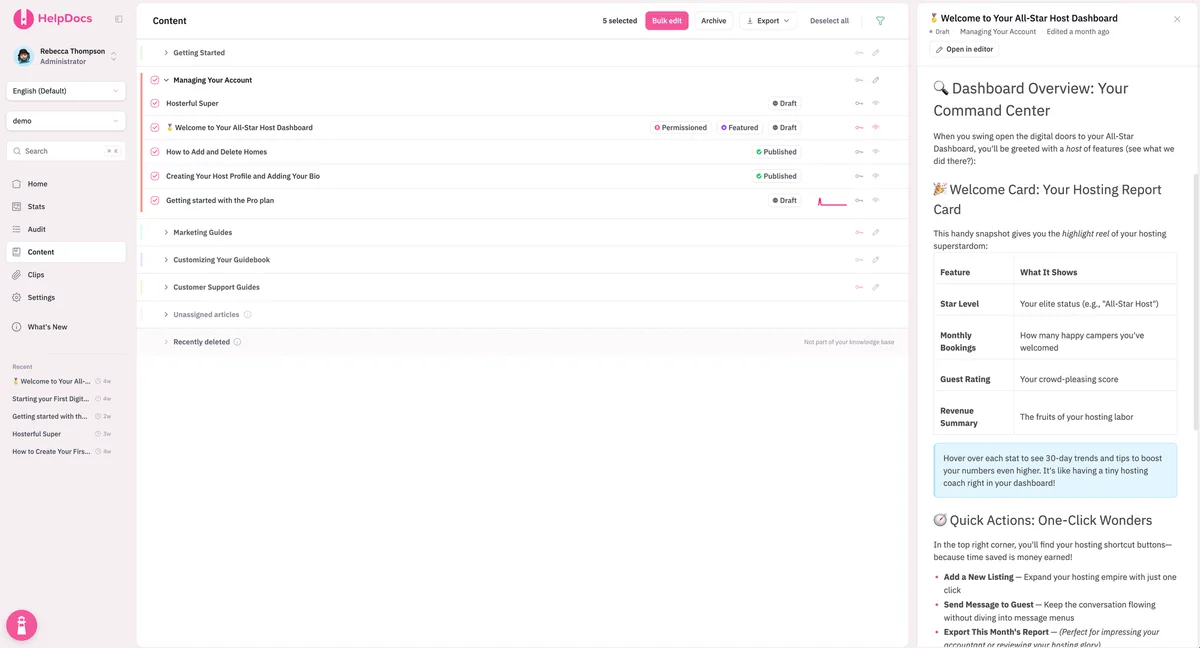
The blank page is the hardest part. You know your customers keep asking the same handful of questions, you know a good help center would catch most of them, and yet the cursor just blinks at you. Where do you even start when you’re building a knowledge base from scratch?
This guide walks you through exactly that. Learning how to build a knowledge base isn’t one giant task, it’s a sequence of small, manageable ones: set your goals, pick your software, plan the structure, write the first articles, make it look like you, launch, and keep improving. If you’re still fuzzy on the bigger picture of why any of this matters, the fundamentals of knowledge management are worth a quick read first. Otherwise, let’s get building.
The payoff is real, by the way. Harvard Business Review found that 81% of customers try to handle an issue themselves before they ever contact a live agent (Harvard Business Review). Your customers already want to self-serve. A knowledge base is how you let them.
Step 1: Set clear goals and know your audience
Before you write a word, get honest about what you want this knowledge base to do. “Fewer tickets” is the obvious one, but be specific. Are you trying to deflect password resets? Onboard new users faster? Cut down on the same three billing questions? A concrete goal tells you what to write first and how you’ll know it’s working.
Then picture the person reading. A customer-facing help center and an internal knowledge base serve very different audiences, and the difference shapes everything from tone to which topics you cover.
Write down who you’re helping and what “success” looks like in a sentence or two. You’ll come back to it constantly.
Step 2: How do you choose knowledge base software?
Your knowledge base software is the foundation, so it’s worth a proper look rather than defaulting to whatever’s bundled with your other tools. The right choice depends on your team, but a few things matter almost universally: fast search, an editor your writers actually enjoy, easy branding, and analytics so you can see what’s working. We break down the whole landscape in our guide to documentation software.
A quick clarification while we’re here. Your knowledge base is the published, self-serve library your customers read. A help desk is the separate ticketing tool your team uses to answer the questions your articles don’t cover. Plenty of platforms offer both, but they’re distinct jobs, so don’t pick a knowledge base tool purely because it happens to bolt onto your help desk.
One more thing to weigh: how much busywork the platform handles for you. Modern tools can auto-suggest articles, surface broken links, and translate content, saving hours you’d rather spend writing.
Step 3: Plan your structure before you write
It’s tempting to skip straight to writing, but ten minutes of planning now saves hours of reshuffling later. Your structure is the categories, hierarchy, and navigation that decide whether a customer finds an answer in five seconds or gives up. We go deep on this in the full guide to how to structure a knowledge base, but here’s the short version.
Group your planned articles by the job the customer is trying to do (getting started, billing, troubleshooting), not by how your product is built internally. Pick five to eight top-level categories as your front door, and keep the hierarchy shallow so nothing is buried. Name everything in plain language your customers actually use, borrowed straight from those support tickets you read in step one.
This matters more than it looks. Findability is the number one reason self-service fails, because customers give up when they can’t reach the right article. Good structure is how you beat that.
Step 4: Write your first articles
Now the fun part. Resist the urge to document everything at once, and instead ship the handful of articles that answer your most common questions. Those top few will do the heavy lifting, and getting them live beats a perfect plan that never ships. Our guide to writing your first ten articles is a practical way to pick and draft them.
A dependable article shape works nearly every time: a clear title phrased the way a customer would search, a one-line summary of what they’ll learn, numbered steps or short sections, and a pointer to the logical next article. Write like you’re helping one person, keep sentences short, and cut the jargon.
Don’t aim for polish on the first pass. Publish a useful-but-rough draft, watch how people use it, and refine. A live article that helps someone today beats a flawless one still in your drafts.
Step 5: Make it look and sound like you
A knowledge base that matches your brand feels trustworthy, and one that reads like it came from ten different people feels shaky. Both are fixable with a little upfront work. On the visual side, add your logo, colors, and a custom domain (like help.yourcompany.com) so the help center feels like a natural part of your product.
On the writing side, a documentation style guide keeps everyone consistent: how you refer to features, whether you write “sign in” or “log in”, how you format steps, and the overall tone. It sounds fussy, but it’s what makes a library written by many hands read like one confident voice.
Consistency also builds the trust that gets people to rely on self-service in the first place. Zendesk found that 91% of customers would happily use a knowledge base if it met their needs (Zendesk). Meeting their needs is as much about clarity and polish as it is about coverage.
Step 6: How do you launch a knowledge base?
Launching is quieter than it sounds. You don’t need a big announcement, you need your customers to bump into the right article at the right moment. Link to your help center from your website navigation, your app’s help menu, your contact form, and your support email signatures.
Point your contact form at the knowledge base too, so it suggests relevant articles before someone submits a ticket. That single placement often deflects a surprising share of repetitive questions, because you’re catching people at the exact moment they’re about to ask.
Before you flip the switch, do a quick pass: test search with real customer phrasing, click through your categories on mobile, and check that every article has a sensible next step. If you want a worked example, HelpDocs has a friendly walkthrough of setting up a SaaS knowledge base.
Step 7: Measure and improve
A knowledge base is never finished, and that’s a feature, not a bug. Once it’s live, your analytics and your ticket queue become a running to-do list. Watch which searches come back empty, which articles get read but don’t seem to help, and which questions still land in your inbox.
Set a recurring reminder to review the numbers, add the missing articles, and prune anything outdated. Your help desk quietly doubles as a content factory here: every question asked twice is an article waiting to be written. Feed those back in and your ticket volume keeps shrinking over time.
The build, phase by phase
If it helps to see the whole path in one view, here’s the sequence from blank page to a help center you’re proud of.
| Phase | What you do | The goal |
|---|---|---|
| 1. Goals & audience | Define who you’re helping and what success looks like | A clear brief to write against |
| 2. Choose software | Pick a platform with search, clean authoring, analytics | The right foundation |
| 3. Plan structure | Group by customer task, 5 to 8 plain-language categories | Content people can find |
| 4. Write first articles | Ship your most-asked answers in a consistent shape | Real value, live |
| 5. Style & branding | Add your look, a style guide, and a custom domain | One trustworthy voice |
| 6. Launch | Link it everywhere, wire it into your contact form | Customers actually reach it |
| 7. Improve | Watch analytics and tickets, fill gaps, prune | Deflection that compounds |
The bottom line
Building a knowledge base looks daunting from the blank page, but it’s really just seven steps done in order: know your goal, choose your tool, plan a findable structure, write the articles that matter most, make it look like you, launch it where people will find it, and keep improving. Start small, ship early, and let real customer behavior guide what you write next.
When you’re ready to turn the plan into a real help center, you can build your knowledge base and work through these steps as you go.