How to structure a knowledge base
Design categories, hierarchy, and navigation that match how customers search.
You’ve written a dozen genuinely helpful articles, published them, and customers still open tickets asking the exact things you already answered. Nine times out of ten the problem isn’t your writing. It’s that nobody can find the article, because the knowledge base underneath it has no clear structure.
Learning how to structure a knowledge base is what turns a pile of good articles into something people can actually navigate. Structure is the categories, the hierarchy, and the navigation that decide whether a customer lands on the right answer in five seconds or gives up in thirty. It’s the practical, hands-on half of knowledge management, and it’s the difference between a help center people trust and one they quietly avoid.
Think of this as the starting point for a whole series on planning your knowledge base structure. Over the next few articles we’ll go deep on each piece: information architecture, categories, taxonomy, and the rest. Here, let’s walk the whole path end to end so you can see how the pieces fit before you zoom in on any one of them.
Why knowledge base structure matters
Poor structure is expensive, and it shows up in one place above all: findability. When customers can’t find an answer, self-service quietly fails even though the article exists. The articles are often right there. Customers just can’t get to them.
When structure is good, the opposite happens. People search or browse, narrow down quickly, and solve their problem without ever queuing for a human. Solid knowledge base structure is quietly the highest-leverage thing you can work on, because it multiplies the value of every article you’ve already written.
Start with how your customers search
Before you draw a single category, remember who the structure is for. Your customers don’t think in your internal org chart, your feature names, or your team’s jargon. They think in problems: “my card was declined,” “how do I invite a teammate,” “the export is broken.” Structure that mirrors their language and their tasks will always beat structure that mirrors your codebase.
There are really two ways people find answers: searching (typing a query) and browsing (clicking through categories). A well-structured knowledge base serves both. Search needs clear titles and consistent wording so the right article surfaces. Browsing needs a logical hierarchy so someone who doesn’t know the exact term can still drill down to it.
How to structure a knowledge base, step by step
Here’s the path from a blank page to a knowledge base customers can navigate. Each step gets its own deeper guide later in the series, but this is the whole shape in one place.
1. Decide what to document first
You can’t structure content that doesn’t exist yet, so start by listing the questions your team answers most. Your ticket queue, search logs, and chat transcripts are a ready-made priority list. Cover the top 10 to 20 drivers first, because they represent the bulk of your volume. We go deeper on this in what to document first.
2. Group articles into categories
Once you have a batch of articles, look for natural clusters. Group by the job the customer is trying to do (getting started, billing, troubleshooting) rather than by how your product is built internally. Aim for categories that are roughly balanced in size, and name them in plain words a newcomer would recognize. The art of good knowledge base categories is worth a proper read once you’re grouping in earnest.
3. Pick your top-level categories
Your top-level categories are the front door: the handful of buckets a visitor sees first. Keep this set small, because too many choices at the top is just as paralyzing as too few (most knowledge bases work best with five to eight). Each one should be broad enough to hold several articles but distinct enough that customers know instantly which to click. Our guide to choosing top-level categories covers how to pick and order them.
4. Design the hierarchy and navigation
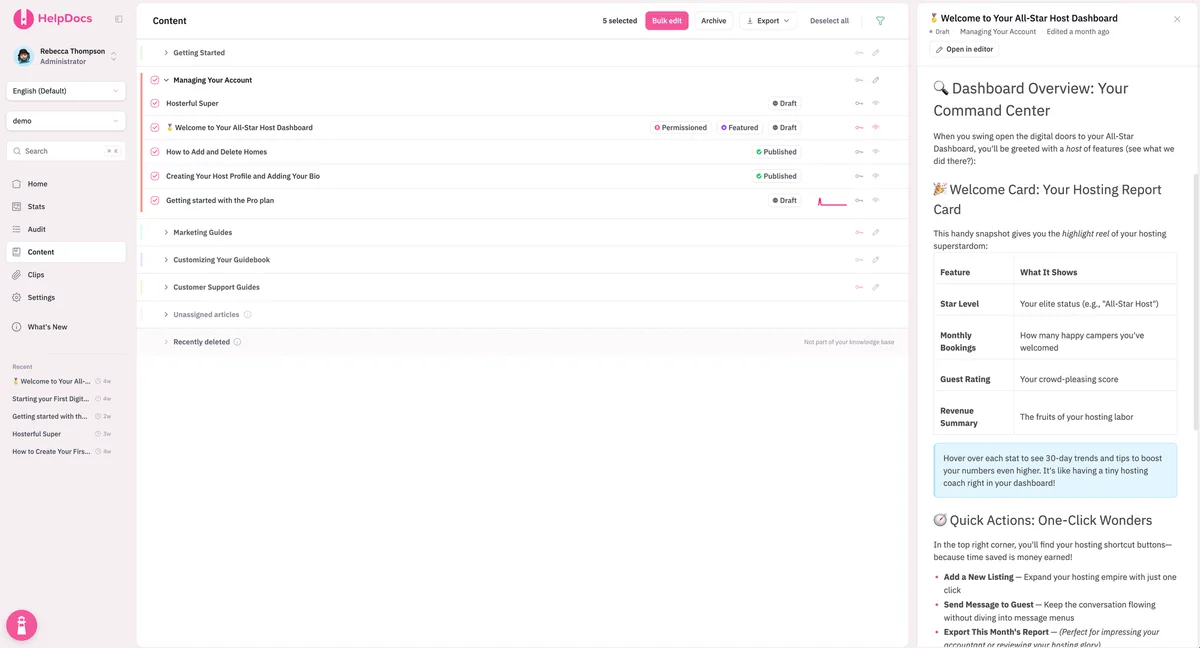
Now arrange those categories into a hierarchy: top-level categories, optional subcategories, then articles. Keep it shallow. Two levels of nesting is plenty for most help centers, and every extra layer is another place a customer can get lost. This layout, how everything nests and links together, is your information architecture, and it’s the backbone the whole knowledge base hangs on.
5. Layer in a taxonomy for cross-cutting topics
Some topics refuse to sit in a single category. One article about refunds might belong under billing, returns, and account management all at once. That’s where a taxonomy comes in: tags and metadata that connect related articles across your category tree without forcing you to duplicate them. Good tagging also powers search and “related articles” suggestions, so customers find the next thing they need without hunting for it.
6. Give every article the same shape
Structure isn’t only about where articles live. It’s about the articles themselves too. When every article follows the same pattern (a clear title, a short intro, numbered steps, a suggested next step), customers learn the rhythm and read faster. A reusable help article template keeps that consistency without extra thinking, and it makes your knowledge base feel like one product instead of a dozen authors.
Should you structure an internal knowledge base differently?
Yes, a little. A customer-facing help center is organized around customer tasks, while an internal knowledge base is organized around how your team works: departments, processes, and policies. The structuring principles (clear categories, shallow hierarchy, consistent articles) carry straight over, but the labels and top-level buckets will look different. Decide who the audience is before you name a single category.
The layers of knowledge base structure at a glance
If it helps to see all the pieces stacked up, here’s the whole structure in one view, from the front door down to the plumbing.
| Layer | What it is | Rule of thumb |
|---|---|---|
| Top-level categories | The main buckets on your home page | 5 to 8, named in plain language |
| Subcategories | Optional groupings inside a category | Add only when a category gets crowded |
| Articles | The individual answers | One topic each, same template |
| Taxonomy (tags) | Cross-cutting labels and metadata | Connect related articles across categories |
| Navigation and search | How people move through and query the content | Serve browsers and searchers equally |
The bottom line
Good structure is invisible when it works. Customers just find what they need and move on, and your ticket queue quietly shrinks. Start by documenting your most common questions, group them into a small set of plain-language categories, keep the hierarchy shallow, and give every article the same shape.
When you’re ready to put it into practice, you can build your knowledge base and shape the structure as you go, then follow the rest of this series to sharpen each layer.