
Bulk editing and managing content
Update, move, and tidy articles at scale without touching them one by one.
You rename a product feature, and suddenly forty articles still call it the old thing. Doing that one article at a time is an afternoon you’ll never get back, and you’ll miss three along the way. Once your knowledge base grows past a few dozen articles, editing them individually stops being realistic. This is where bulk editing earns its keep, and HelpDocs is built for exactly this kind of housekeeping.
Managing content at scale comes down to three moves: finding the right set of articles, changing them all at once, and being able to undo it if you get something wrong. Get comfortable with all three and a knowledge base of five hundred articles feels about as heavy as one with fifty. You can see the full picture on the content management page, but here’s how to actually put it to work.
How do you find the right set of articles?
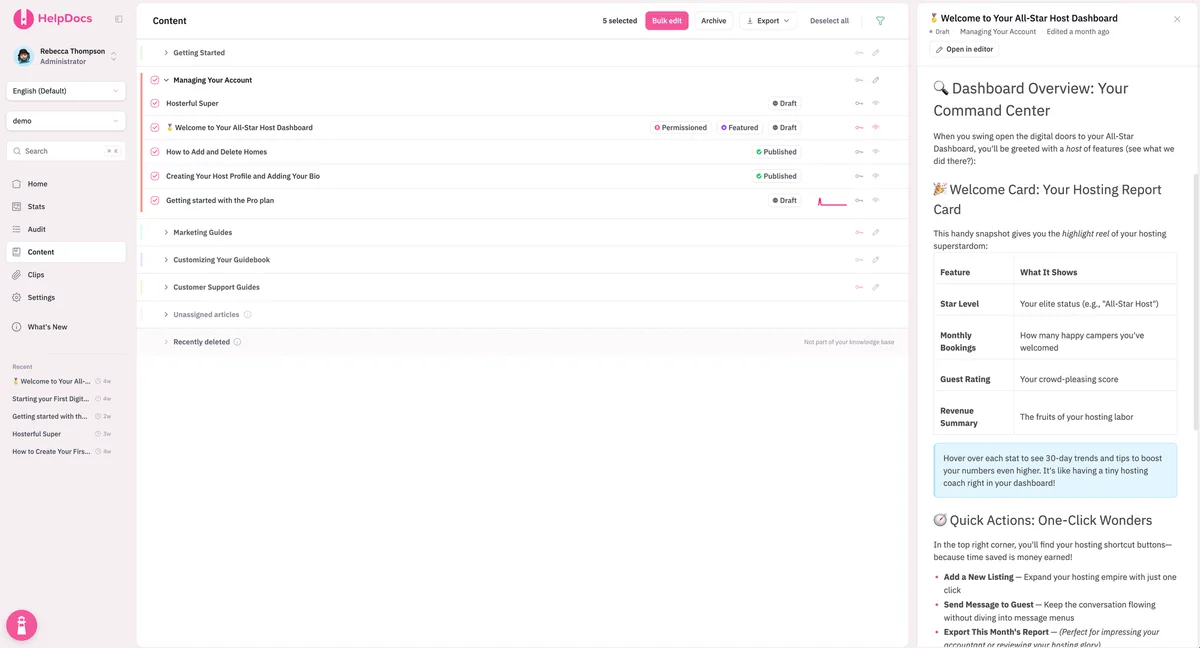
Every bulk change starts with a selection, and a good selection starts with a filter. Guessing is how you accidentally retag the wrong category, so narrow before you act. In the Content area of your HelpDocs dashboard you can search and filter articles down to just the ones that share the attribute you care about.
Think in terms of the attribute your change depends on. If you’re retiring a feature, filter to the category tied to it. If you’re chasing stale pages, filter to the ones flagged as stale. Then tick the checkbox next to each article you want, or tick a whole category and every article in its subcategories comes along too. Your selection sticks even if you navigate away, so you won’t lose your place mid-job.
Tip
Before running any bulk change, sanity-check the count. If you expected to update a dozen articles and the filter returns eighty, your filter is too loose. Tighten it until the number matches what’s in your head, then select.
What can you change in bulk?
With your articles ticked, hit the Bulk Edit button and choose what to change. In one pass you can update article status, author, and stale status, move everything to a new category, adjust permissions, enable or disable the table of contents, and even download the selection as PDFs. Choose your changes, click Apply Edits, and they land across the whole batch at once. That covers most of the tedious jobs: moving articles into a new category, reassigning ownership when someone leaves, or flipping a set from draft to published for a launch.
Restructuring a section is a bulk job too, and HelpDocs keeps redirects in place so old links don’t break when you move things around. On top of the core Bulk Edit actions, you can lean on HelpDocs AI and machine translation to help title, describe, and localize content at scale, so a whole section doesn’t have to be an article-by-article grind.
Here’s a quick map of the common bulk tasks and when each one earns its place in your routine.
| Bulk task | Reach for it when | Watch out for |
|---|---|---|
| Move category | You’re reorganizing sections or splitting a bloated category | Redirects keep old links alive, so move freely |
| Change status | Publishing a launch batch, or pulling drafts back for review | Double-check nothing goes live before it’s ready |
| Reassign author | Someone leaves, or ownership of a section shifts | Pair with your review cadence so the new owner knows |
| Set stale status | Flagging a batch for review after a product change | Clear it once the articles are actually fixed |
| Add or update tags | Improving findability, or grouping for a future filter | Keep a consistent tag vocabulary, or filters get messy |
| Update permission groups | Restricting a set to logged-in or internal readers | Confirm the right audience, especially for internal docs |
| Bulk translate | Rolling a section out to a new language | Review machine output before customers see it |
How does version history keep you safe?
The reason you can be bold with bulk changes is that nothing you do is permanent. HelpDocs saves a new version of an article roughly every five minutes as you work, and keeps the 10 most recent versions of every article. If a bulk edit went further than you meant, you’re not stuck with it.
Open the Versions panel from the bottom left of the text editor and you’ll see saved versions as tabs across the top. Use the dropdown to compare any version against the current one, with additions shown in green and deletions in red, then click Restore Version to roll back. So the workflow is genuinely reversible: run the change, spot-check a few articles, and if something looks off, restore the earlier version and try a tighter filter.
Note
Version history is per article, not per batch, so there’s no single “undo the whole bulk action” button, and the version list shows the 10 most recent (plus the published version, if you’ve saved drafts on top of it). After a big change, review a sample right away while you still remember what you touched. Catching a mistake in the first ten minutes is far easier than finding it three weeks later.
Folding bulk edits into a maintenance routine
Bulk editing shines brightest when it’s part of a habit rather than a rescue mission. Instead of letting problems pile up until you’re forced into a giant cleanup, wire these tools into a regular pass over your library. Filter for stale articles once a month, batch-update what’s drifted, and move on.
The same goes for the events that should trigger a check: a product release, a pricing change, a new integration. When one lands, filter to the affected articles and update them as a set that same week. This is the practical engine behind a proper content maintenance workflow, where a repeatable cadence quietly keeps everything accurate.
Important
Access control belongs in your routine too. When you spin up internal-only or restricted content, set permission groups in bulk as part of the same pass, rather than checking each article by hand later. A growing knowledge base stays trustworthy when the right people, and only the right people, can see each article.
The mindset shift is simple. You stop thinking about articles one at a time and start thinking about sets: everything tagged for a sunset feature, everything a departing teammate owned, everything a release just touched. Find the set, change the set, verify the set. That’s how a knowledge base scales without turning into a second job.